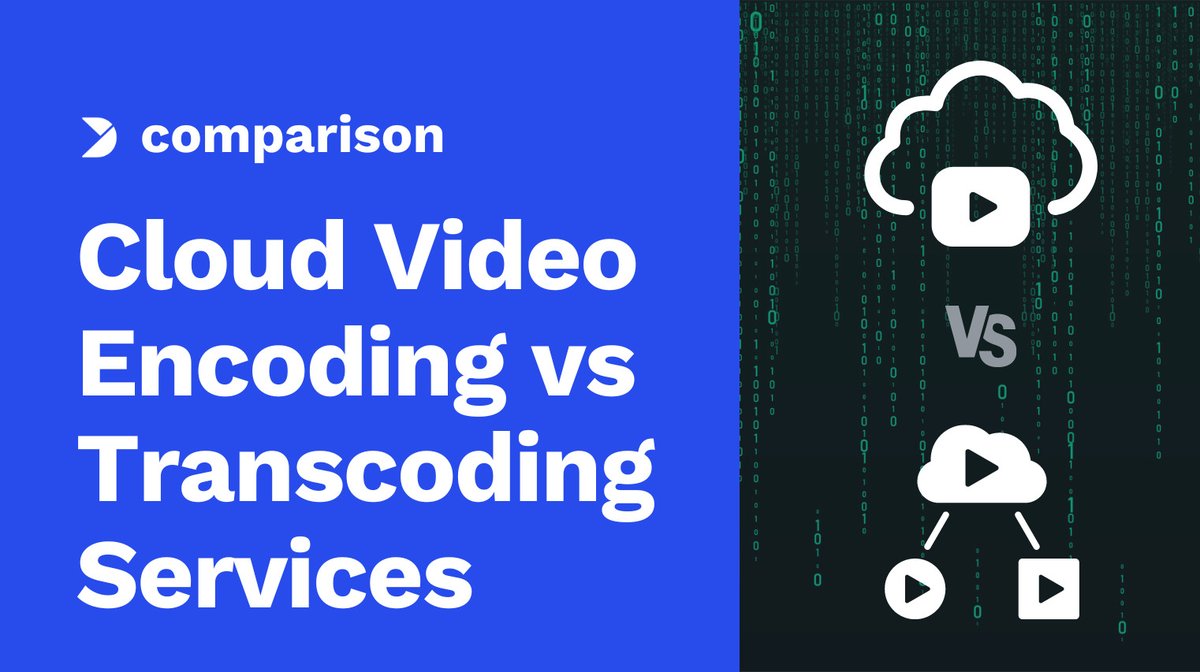
In today's digital landscape, delivering high-quality video across countless devices and fluctuating network conditions isn't just a nicety—it's the core promise of modern streaming. Whether you're binge-watching a 4K movie, catching a live sports event, or video conferencing with colleagues, the magic behind that seamless experience largely hinges on two critical, often misunderstood processes: video encoding and transcoding for streaming. These aren't just technical terms; they're the workhorses that ensure your content looks great, loads fast, and reaches everyone, everywhere.
Think of it this way: raw video is a massive, unwieldy beast. Encoding tames it, shrinking its size while maintaining its essence. Transcoding then custom-fits that beast into myriad outfits, ready for any screen, any connection speed. Without these steps, the dream of universal, high-quality video streaming would remain just that—a dream.
At a Glance: Your Quick Guide to Encoding & Transcoding
- Video Encoding: Compresses raw, uncompressed video into a smaller, streamable format. It's the initial squeeze to make video practical.
- Video Transcoding: Converts an already encoded video from one format, codec, or resolution to another. It's about adapting video for different playback needs.
- Why They Matter: Essential for reducing file sizes, ensuring compatibility across devices (phones, TVs, laptops), optimizing for various internet speeds, and delivering content via Adaptive Bitrate (ABR) streaming.
- Key Parameters: Bitrate, resolution, frame rate, and codec choices directly impact video quality, file size, and viewer experience.
- The Goal: Deliver the best possible video quality to each viewer, given their unique device and network capabilities, without buffering or excessive load times.
Taming the Data Beast: What is Video Encoding?
Imagine shooting a scene with a professional camera. That raw footage is incredibly rich in detail, but also incredibly large—a single minute can easily be gigabytes. Trying to stream that directly would chew through bandwidth faster than you could say "buffering." This is where video encoding steps in.
Video encoding is the fundamental process of compressing raw video data into a usable, optimized format for storage, playback, and—crucially—streaming. It's like taking a sprawling, verbose story and distilling it into a captivating, concise narrative. The goal? Reduce file size drastically while preserving as much visual quality as possible.
The Encoder's Toolkit: How It Works
- Compression: The Art of Redundancy Elimination
- Spatial Compression: Looks for redundancies within a single frame. If a patch of sky is all the same shade of blue, why describe every single pixel? The encoder notes that the entire patch is "blue" once, saving massive amounts of data.
- Temporal Compression (Motion Compensation): This is where video really shines. Instead of encoding every pixel of every frame, the encoder identifies what parts of a scene haven't changed between frames. For moving objects, it simply records how they moved relative to the previous frame. Think of it: if a person walks across a static background, only the person's movement and new background revealed needs to be described, not the entire scene repeatedly.
- Entropy Coding: After identifying redundancies, algorithms like Huffman or Arithmetic coding apply further statistical compression to the remaining data, squeezing out every last bit of inefficiency.
- Conversion to Digital Format & Packaging
- Raw analog video signals are digitized through sampling and quantization, turning continuous waves into discrete numbers.
- Once compressed, the video, along with its synchronized audio and any metadata (like subtitles or chapter markers), is packaged into a widely supported container format. Common examples include MP4, MKV, or AVI. These containers don't compress the video but rather organize its various components into a single, cohesive file.
- Adjustment of Parameters: Your Creative Control Panel
- This is where you fine-tune the output. Key parameters include:
- Bitrate: The amount of data encoded per second (e.g., Mbps). Higher bitrate generally means better quality but a larger file size and higher bandwidth requirement.
- Resolution: The dimensions of the video (e.g., 1080p, 4K). More pixels mean more detail.
- Frame Rate (FPS): How many individual still images are displayed per second. Higher FPS (e.g., 60fps) results in smoother motion, especially for fast-action content.
- Color Space: Defines the range of colors the video can display (e.g., BT.709 for standard HD, BT.2020 for HDR).
Encoding typically takes raw input (like camera sensor data or uncompressed frame buffers) and outputs compressed video files using popular codecs like H.264 (AVC), H.265 (HEVC), or AV1. This is a computationally intensive process, often handled by dedicated software like OBS, FFmpeg, or Adobe Media Encoder as part of your content creation or export workflow.
The Content Chameleon: What is Video Transcoding?
If encoding is about making video streamable, transcoding is about making it universally compatible. It's the dynamic process of converting an already encoded video from one format, codec, or resolution to another. Why bother re-processing something that's already compressed? Because "streamable" on a fiber-optic-connected 4K TV is very different from "streamable" on a 3G-connected smartphone.
Transcoding is the backbone of multi-device compatibility, enabling a single source video to be delivered optimally to literally hundreds of different devices and network conditions. It's also crucial for generating the multiple quality versions required for Adaptive Bitrate (ABR) streaming, which we'll dive into shortly.
The Transcoding Journey: From Source to Screen
- Video Asset Ingestion: You start with your source video—often a high-quality, already compressed master file (e.g., ProRes, H.264) that's intended for broad distribution.
- Decoding and Re-encoding: This is the core of transcoding. The ingested video is first decoded back into an uncompressed or semi-uncompressed state. Then, it's re-encoded with new parameters: a different codec (e.g., from H.264 to VP9), a lower resolution (e.g., 1080p to 720p or 480p), a reduced bitrate, or even a different frame rate. This step generates the multiple quality levels needed for adaptive streaming.
- Packaging and Fragmentation: The newly encoded streams are then segmented into small, standardized chunks (typically 2-6 seconds long). These chunks are packaged into adaptive streaming formats like HLS (producing
.m3u8playlists and.tsmedia files) or MPEG-DASH (generating.mpdmanifests and fragmented.mp4(fMP4) files). These formats are designed to allow players to switch between different quality chunks on the fly. - Multi-CDN Distribution: The fragmented, packaged chunks are then distributed across a Multi-CDN (Content Delivery Network) infrastructure. This ensures redundancy, global availability, and reduced latency, meaning viewers get content from the server closest to them.
- Adaptive Bitrate (ABR) Streaming Preparation: The system ties all the different resolution/bitrate versions together with a master manifest file (
.m3u8for HLS,.mpdfor DASH). This manifest tells the player client all the available quality options for the video. - Client-Side Playback: When a user hits "play," their device requests the video via HLS or DASH. Based on their current network bandwidth, CPU capabilities, and screen size, the player dynamically fetches the most appropriate video chunks, seamlessly switching to higher or lower quality as conditions change.
Transcoding is incredibly demanding due to the full decode-encode cycles involved. It often has high I/O demands and is typically offloaded to powerful cloud services (like AWS MediaConvert) or specialized local batch tools (like HandBrake) to handle the scale and complexity. For a deeper dive into the architecture powering this, you might want to explore the pstream hub.
Encoding vs. Transcoding: The Critical Distinction
While both encoding and transcoding involve compression and conversion, their starting points and primary objectives are fundamentally different:
- Encoding: Takes raw, uncompressed video data and compresses it into a defined format. It's the first step in making video manageable. Think of it as creating the master print from a film negative.
- Transcoding: Takes an already compressed and encoded video file and converts it into a different compressed format, codec, resolution, or bitrate. It's about adapting an existing master print for various distribution channels and viewing experiences.
When to use which? - You encode when you're taking footage directly from a camera, a screen capture, or an uncompressed source and preparing it for initial storage or its first distribution.
- You transcode when you need to convert that initially encoded file to work on a different device, suit a specific platform's requirements (e.g., YouTube), or create multiple quality versions for adaptive streaming.
A Quick Word on Video Decoding
To complete the picture, we must briefly touch on video decoding. This is the reverse process of encoding. When you stream a video, your device receives a compressed bitstream. The decoder's job is to reconstruct those compressed streams back into viewable frames, restoring motion, color data, and quantization, so they can be displayed on your screen or processed further.
Decoding happens on the client side (your device). It uses timestamps (DTS for decode order, PTS for presentation order) to ensure frames are displayed correctly. Decoders can be software-based or leverage hardware acceleration (e.g., Intel Quick Sync, NVIDIA NVDEC) for efficiency, though support can vary (e.g., Safari historically lacked AV1 support).
Why This Matters for Streaming: The Adaptive Edge
Understanding encoding and transcoding isn't just academic; it's foundational to delivering modern streaming experiences.
The Adaptive Bitrate (ABR) Revolution
Imagine trying to deliver a 4K video to someone on a slow Wi-Fi connection. Without ABR, they'd either buffer constantly or get no video at all. ABR streaming solves this by creating multiple "representations" of the same video—different resolutions and bitrates (e.g., 4K, 1080p, 720p, 480p).
Transcoding is the engine that generates these multiple representations. When you watch an ABR stream, your player dynamically monitors your network speed and device capabilities. If your bandwidth drops, it seamlessly switches to a lower bitrate version of the video. If your connection improves, it switches back up. This constant, unnoticeable adaptation is why streaming "just works" for most people, most of the time.
Multi-Device Mayhem: Solving Compatibility
From smart TVs and laptops to tablets and tiny phone screens, the variety of devices capable of playing video is staggering. Each might prefer or even require a different codec, resolution, or streaming protocol.
Transcoding ensures your content reaches every screen. By converting your master video into a diverse set of outputs—different formats (MP4, WebM), codecs (H.264, H.265), and resolutions—you guarantee compatibility. A single source asset can thus satisfy the technical demands of a high-end gaming PC and a budget smartphone simultaneously.
Navigating Platform Peculiarities
Every major streaming platform (YouTube, Netflix, Vimeo, Twitch) has its own recommended or required encoding and transcoding specifications. They optimize for their specific infrastructure, audience, and playback ecosystem.
Transcoding allows you to tailor content for each platform. You might have a high-quality master file, but you'll transcode it to meet YouTube's specific H.264 profile, resolution ladder, and audio requirements. This prevents rejections, ensures optimal processing, and maintains visual fidelity across diverse distribution channels.
The Technical Deep Dive: Process & Parameters
Let's unpack some of the key technical elements that give you control over your streaming quality.
Key Encoding Parameters You Need to Master
When you encode or re-encode video, these parameters are your levers for quality and efficiency:
- Bitrate (kbps/Mbps): This is perhaps the most crucial setting. It defines the amount of data used per second.
- Higher Bitrate: More data, better quality, larger file size. Essential for complex scenes, fast motion, and high resolutions.
- Lower Bitrate: Less data, lower quality, smaller file size. Tolerable for simpler scenes or when bandwidth is extremely limited.
- Bitrate Control:
- CBR (Constant Bitrate): Maintains a consistent bitrate throughout, which is good for live streaming where network predictability is key.
- VBR (Variable Bitrate): Adjusts the bitrate dynamically based on scene complexity. More complex scenes get higher bitrate, simpler scenes get lower. This offers better quality for a given file size but can be less predictable for real-time delivery.
- ABR (Adaptive Bitrate): Not a control type but a strategy leveraging multiple VBR streams.
- Resolution: The width x height in pixels (e.g., 1920x1080 for 1080p).
- Lowering Resolution: Significantly reduces file size and processing demands. However, it can lead to noticeable detail loss, especially on larger screens.
- Upscaling: Increasing resolution without proper source data can introduce blurriness or artifacts. Only recommended with high-quality algorithms and when the target display demands it.
- Frame Rate (fps): The number of images displayed per second.
- Standard film is 24fps, TV is often 30fps (NTSC) or 25fps (PAL), and gaming/sports often use 60fps for smoother motion.
- Adjusting frame rate can impact file size and perceived motion fidelity.
- Codec (Compressor/Decompressor): The algorithm used to compress and decompress video.
- H.264 (AVC): Widely supported, good balance of compression and quality. Still a workhorse for most streaming.
- H.265 (HEVC): Offers significantly better compression efficiency than H.264 (up to 50% smaller files for the same quality), crucial for 4K and HDR. Requires more processing power for encoding/decoding and has broader licensing complexities.
- AV1: Royalty-free, even more efficient than HEVC, but still gaining widespread hardware support for decoding. Ideal for future-proofing and maximizing quality at low bitrates.
- VP9: Google's royalty-free codec, commonly used by YouTube and supported in many browsers.
- Container Format (Wrapper): Holds the compressed video, audio, and metadata.
- MP4: The most common for web streaming due to wide compatibility.
- MKV: Supports more features like multiple audio tracks, subtitles, and chapter markers, but less universally supported by browsers directly.
- MOV: Apple's proprietary format, often used in production workflows.
The Transcoding Workflow: From Source to Screen (Revisited with Detail)
A robust transcoding workflow typically follows these stages, often automated in cloud environments:
- Ingestion: Source video files (often high-bitrate masters) are uploaded.
- Preprocessing (Optional): This might include trimming, cropping, watermarking, adding intro/outro, or correcting color.
- Encoding Ladder Generation: The core transcoding step. The source is decoded and then re-encoded into multiple versions, each with a different resolution, bitrate, and potentially codec. This creates your "ABR ladder."
- Audio Processing: Audio tracks are also transcoded (e.g., to AAC or Opus) and synchronized with their video counterparts, often into multiple bitrates.
- Packaging: The segmented video and audio chunks are assembled into adaptive streaming formats (HLS/DASH) along with their manifest files. This also includes encryption for DRM if applicable.
- Thumbnail & Metadata Generation: Static images (thumbnails) are extracted, and metadata is parsed and stored for content discovery.
- Delivery to CDN: The finished, packaged content is pushed to a global CDN for rapid, reliable delivery to end-users.
Choosing Your Weapons: Codecs, Containers, and Formats
Your choices here depend heavily on your target audience, required quality, and budget:
- For broad compatibility today: H.264 (AVC) in an MP4 container, delivered via HLS or MPEG-DASH, is your safest bet.
- For 4K/HDR or maximizing quality at lower bitrates: H.265 (HEVC) or AV1. Be mindful of device support and potential licensing costs (for HEVC).
- For low-latency live streaming: HLS (with smaller segment sizes) or CMAF (Common Media Application Format), which offers excellent efficiency and low latency, often coupled with H.264 or H.265.
- For specific platforms: Always consult their documentation. YouTube supports a wide range, but has optimal settings for best results.
Real-World Applications & Best Practices
Understanding the "how" is good, but the "when" and "why" are what drive actionable decisions.
Encoding for Initial Uploads (e.g., YouTube)
When you upload your latest creation to a platform like YouTube, you're primarily doing an initial encoding of your raw or high-quality edited footage. YouTube will then transcode it further into its own ABR ladder. To ensure the best quality source for their transcoding, you should:
- Start with high-quality source: Don't compress heavily before uploading. Use a high bitrate, high-resolution master file.
- Recommended Codec: H.264 is universally accepted and performs well.
- Frame Rate Consistency: Match your source frame rate to the encoded output (e.g., 29.97fps, 30fps, 59.94fps, 60fps).
Transcoding for Scale: Multi-Quality Ladders
For any serious video service, manually creating every single video version is impossible. This is where automated cloud transcoding services excel.
- Strategic Resolution/Bitrate Ladder: Develop a smart ladder. Don't just pick arbitrary numbers. Consider your audience's typical device types and network speeds. A common ladder might include:
- 1080p @ 6-8 Mbps
- 720p @ 3-4 Mbps
- 480p @ 1.5-2 Mbps
- 360p @ 800-1000 kbps
- 240p @ 400-600 kbps
- Cloud Transcoding: Services like AWS MediaConvert or Google Cloud Transcoder take your master file and generate all these versions automatically, handling the compute-intensive work for you. This is crucial for handling large content libraries efficiently.
Live Streaming's Dynamic Duo: Cloud Transcoding
Live events, especially high-stakes ones like sports or concerts, present a unique challenge: real-time transcoding.
- Ingestion: A high-quality live feed (e.g., 4K from a broadcast camera) is ingested into a cloud transcoding service.
- Real-time Transcoding: The service dynamically transcodes this live 4K stream into multiple lower resolutions and bitrates (e.g., 1080p, 720p, 480p).
- Low Latency Packaging: These transcoded streams are immediately packaged into adaptive formats with very small segment sizes (e.g., 2 seconds for HLS or DASH with CMAF) to minimize delay.
- Global Distribution: The fragmented live streams are pushed to CDNs, enabling viewers worldwide to watch with minimal latency and automatic quality adjustments based on their bandwidth.
Streamlining with APIs and Advanced Formats
Modern development focuses on efficiency. Integrating with transcoding APIs allows for custom workflows and automation.
- API-driven Workflows: Services like FastPix (example) offer APIs that simplify the entire transcoding process. You upload your source, specify your desired outputs, and the API handles the heavy lifting, often returning content in optimized formats.
- Common Media Application Format (CMAF): This is a relatively new standard designed to unify HLS and MPEG-DASH. By producing content in CMAF, you get:
- Reduced Storage: Only one set of media segments is needed for both HLS and DASH.
- Simplified DRM: Easier integration of digital rights management.
- Lower Latency: Designed for efficient low-latency streaming.
- This is a prime example of how advanced formats, facilitated by intelligent encoding and transcoding, are pushing the boundaries of streaming efficiency.
Measuring Success: Key Performance Metrics
How do you know if your encoding and transcoding are doing their job? You measure.
- Encoding Speed: How fast can your system process video? Crucial for live streaming or large content libraries.
- Compression Ratio: How much smaller is the encoded file compared to the raw source? (e.g., a 10:1 ratio means the file is 10 times smaller).
- Quality Metrics:
- PSNR (Peak Signal-to-Noise Ratio) & SSIM (Structural Similarity Index Measure): Objective metrics that compare the encoded video to the original source to quantify perceived quality. Higher numbers generally mean better quality.
- VMAF (Video Multimethod Assessment Fusion): A Netflix-developed metric that correlates well with human perception of video quality.
- ABR Switch Delay: How quickly does the player switch to a higher or lower quality stream when network conditions change? Minimal delay ensures a smooth viewing experience.
- Buffering Ratio: The percentage of playback time spent buffering. A low ratio indicates efficient delivery.
Tools like Prometheus and Grafana can be used for real-time monitoring of these metrics, providing automated alerts when performance dips, allowing you to optimize your transcoding profiles and delivery infrastructure.
Common Questions, Clear Answers
Let's clear up some frequently asked questions about these vital processes.
What exactly is "bitrate" and why is it so important?
Bitrate (measured in kilobits per second, kbps, or megabits per second, Mbps) defines the amount of data encoded per second for video or audio. It's important because it directly controls:
- Video Quality: Higher bitrate means more data points describe the image, leading to better detail, fewer artifacts, and smoother gradients.
- File Size: More data per second naturally means a larger total file size.
- Bandwidth Requirement: Viewers need a connection capable of receiving data at least as fast as the bitrate to avoid buffering.
It's a constant balancing act between quality, file size, and accessibility.
What happens if I lower my video's bitrate too much?
Lowering bitrate reduces file size, which can be useful for very slow connections. However, reduce it too much, and you'll introduce noticeable visual artifacts:
- Pixelation: Blocky squares appearing, especially in detailed or fast-moving areas.
- Blurring: Loss of fine detail, making images appear soft or smudged.
- Banding: Noticeable lines or "bands" of color in smooth gradients (like skies), where there should be a continuous transition.
- Macroblocking: Large, distinct blocks visible, often in shadows or low-light areas.
It essentially means the encoder has too little data to accurately represent the original image, forcing it to make harsh compromises.
How do codecs affect compression efficiency and quality?
Codecs are the algorithms. They define how video is compressed and decompressed. Different codecs use different mathematical models to identify and eliminate redundancies.
- Efficiency: Newer codecs like H.265 (HEVC) and AV1 are more efficient, meaning they can achieve the same visual quality as older codecs (like H.264) with significantly smaller file sizes, or higher quality at the same file size.
- Quality: The choice of codec impacts how well the visual integrity is preserved, especially at lower bitrates.
- Decoder Requirements: Newer, more efficient codecs require more powerful processors (or dedicated hardware) for decoding. A device that can easily decode H.264 might struggle with real-time H.265 or AV1 without hardware acceleration.
Choosing the right codec is a balance between compression efficiency, visual quality, and ensuring your target devices can actually play the content without issues.
What are the implications of changing resolution during transcoding?
When you lower the resolution (e.g., from 1080p to 720p) during transcoding, you're essentially discarding pixels.
- Benefits: Reduces file size dramatically, lowers bandwidth requirements, and decreases processing load on the playback device.
- Drawbacks: Leads to a loss of detail and sharpness. On larger screens, a video transcoded to a much lower resolution will appear blurry or pixelated when upscaled by the display.
Upscaling (increasing resolution) during transcoding is generally discouraged unless you have extremely high-quality algorithms and a specific reason (e.g., standardizing all content to 1080p, even if some sources are lower). Simple upscaling without adding real detail often results in a larger file with a blurrier image.
When should I transcode versus just re-encode?
- Transcode: You must transcode when you need to convert a video from one format, codec, or set of parameters to another existing encoded file to meet specific delivery requirements. This is essential for multi-device compatibility, generating ABR ladders, or adhering to platform-specific guidelines. The input is already a compressed video.
- Re-encode: This is often used interchangeably with transcoding but can also refer to taking a high-quality master (even if it's already an encoded file like ProRes) and encoding it again to a new format, perhaps for initial distribution. The key is that the source is not what you want for the final output, and you're processing it again to get a new compressed version. For instance, you might re-encode a ProRes master to a high-bitrate H.264 for initial YouTube upload.
In essence, transcoding is a specialized form of re-encoding focused on adapting an already compressed asset for diverse distribution.
Your Next Steps: Building a Robust Streaming Strategy
The world of video streaming is complex, but with a solid understanding of encoding and transcoding, you're empowered to make informed decisions. Whether you're a content creator, a platform developer, or a business owner relying on video, mastering these concepts allows you to:
- Optimize Quality & Reach: Deliver stunning visuals to everyone, regardless of their device or internet speed.
- Control Costs: Efficient encoding and transcoding reduce storage and bandwidth expenses.
- Future-Proof Content: Adapt to new codecs, devices, and streaming technologies as they emerge.
- Enhance User Experience: Minimize buffering, improve load times, and provide seamless adaptive playback.
Start by assessing your current video assets and your target audience. Are you serving mobile users primarily, or do you need pristine 4K for large screens? Your answers will guide your choices in bitrate ladders, codecs, and container formats. Don't shy away from leveraging cloud transcoding services; they offer the scalability and power to handle these computationally intensive tasks with ease.
The journey from raw footage to a perfectly streamed video is intricate, but with encoding and transcoding as your allies, you're well-equipped to deliver captivating experiences that truly power adaptive content delivery.